Set up your community
Requirements
Section titled “Requirements”Your FiveM server
- FXServer build 12913 or newer, on Windows or Linux. The resource runs on Node.js 22, which FiveM added in build 12913; older servers refuse to start it. We recommend the current Recommended artifact. Avoid 12913–13045, which can crash when a Node.js 22 resource restarts. The server console shows your build when it starts.
- OneSync, which is on by default. Radio speakers, world speakers and the server’s signal check need it. Without it, radios still talk and hear.
- Outgoing internet access to
*.radio.meridiancomms.neton port 443 (secure WebSockets). Nothing connects in to your server, so you don’t need to open any ports, and there’s no database to set up. - Any GTA V game build.
sv_enforceGameBuilddoesn’t matter to Meridian.
Optional, detected automatically
| For | You need |
|---|---|
| Agencies from jobs, duty, callsigns | Qbox, QBCore, ESX Legacy or ox_core (Frameworks) |
| The radio as an inventory item that keeps its identity | ox_inventory or qb-inventory |
| Players calling and texting dispatch | LB Phone (Phone calls) |
| Proximity voice | pma-voice or FiveM’s built-in voice. Meridian runs alongside it (Voice) |
| Agencies from Discord roles, staff signing in with Discord | A Discord server and a bot application (Discord roles) |
Players need nothing beyond FiveM and a microphone. The radio comes with the resource. The Stream Deck plugin is optional.
Staff and dispatchers use the web app in a current desktop browser such as Chrome, Edge or Firefox, with a microphone for the dispatch console. Dispatchers can also use the console in game, on the dispatch tablet.
Sign up
Section titled “Sign up”Sign up with your community’s name, a web address and a plan, then pay at checkout. About a minute after payment, the page you return to shows a Create your owner account button. It works once and makes whoever uses it the system’s owner, so use it yourself and don’t share it.
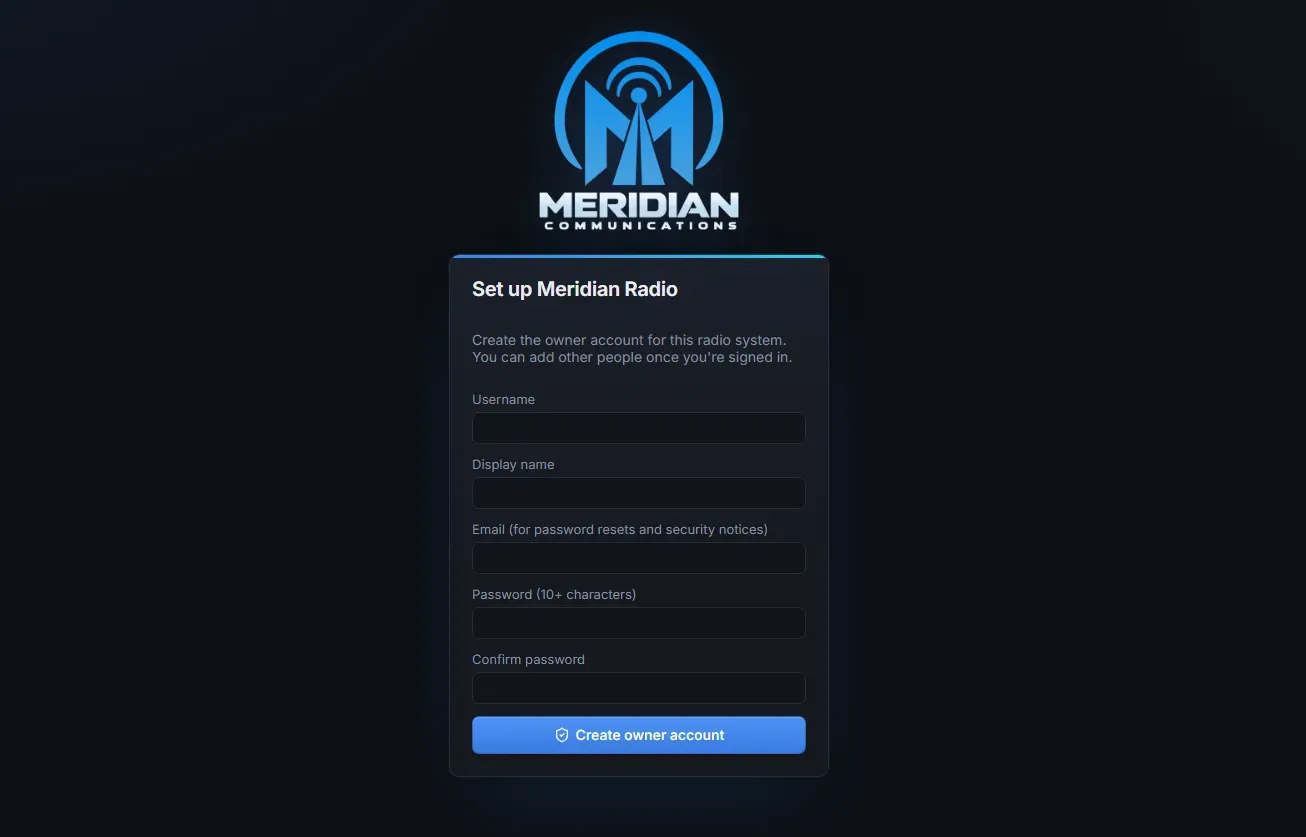
1. Claim your radio system
Section titled “1. Claim your radio system”- Press Create your owner account. It opens your community’s web app,
https://<your-community>.radio.meridiancomms.net. - Choose a username, display name and password. This is the owner account, which can do everything.
- Sign in. Later, add your staff under Users (see Accounts and roles).
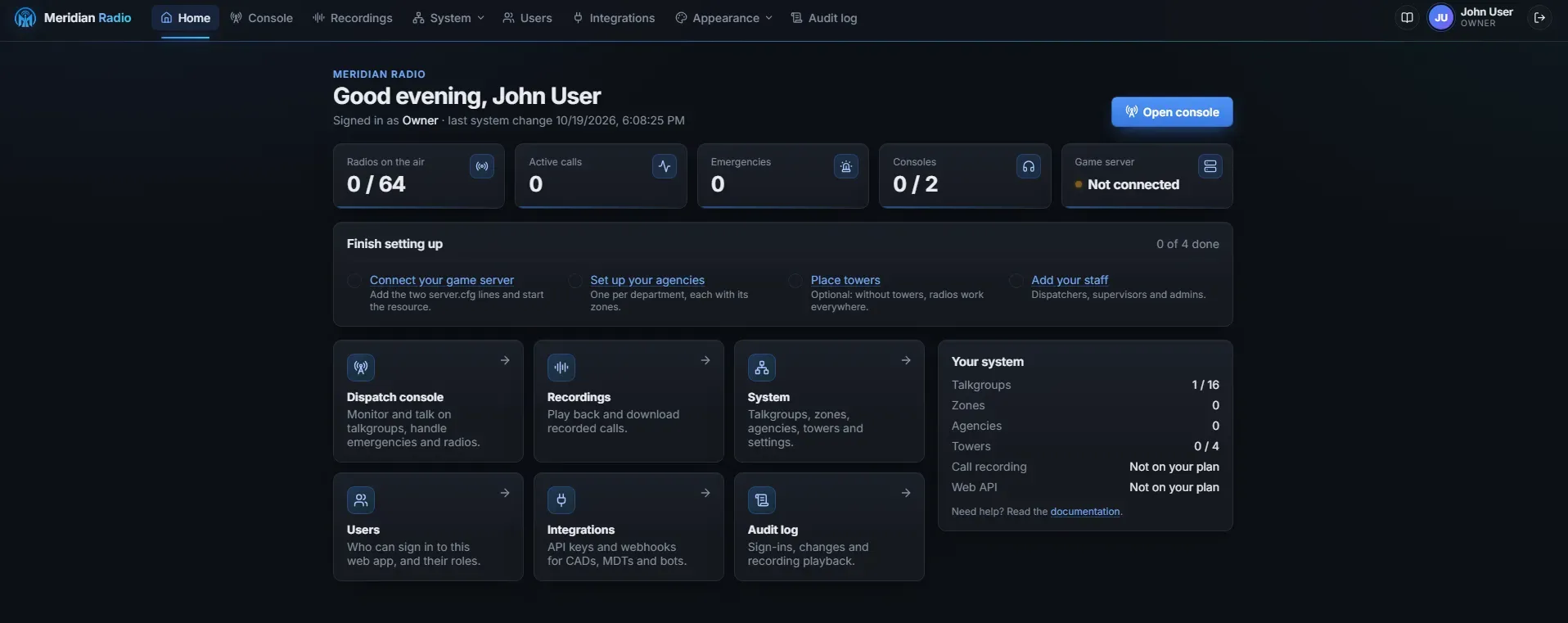
If you closed the page before creating the account, open it again in the same browser, or contact us with the email you signed up with and we’ll send a new link.
2. Install the resource
Section titled “2. Install the resource”- Download the latest
meridianresource. The same download is on System → Settings → Game server connection in your web app. - Unzip it into your server’s
resourcesfolder so you haveresources/meridian/fxmanifest.lua. Keep the folder namemeridianunless you have a reason to change it; scripts that integrate with it use that name.
3. Connect your game server
Section titled “3. Connect your game server”In the web app, go to System → Settings → Game server connection and press Show server.cfg lines. Copy the
two lines into your server.cfg, followed by ensure meridian:
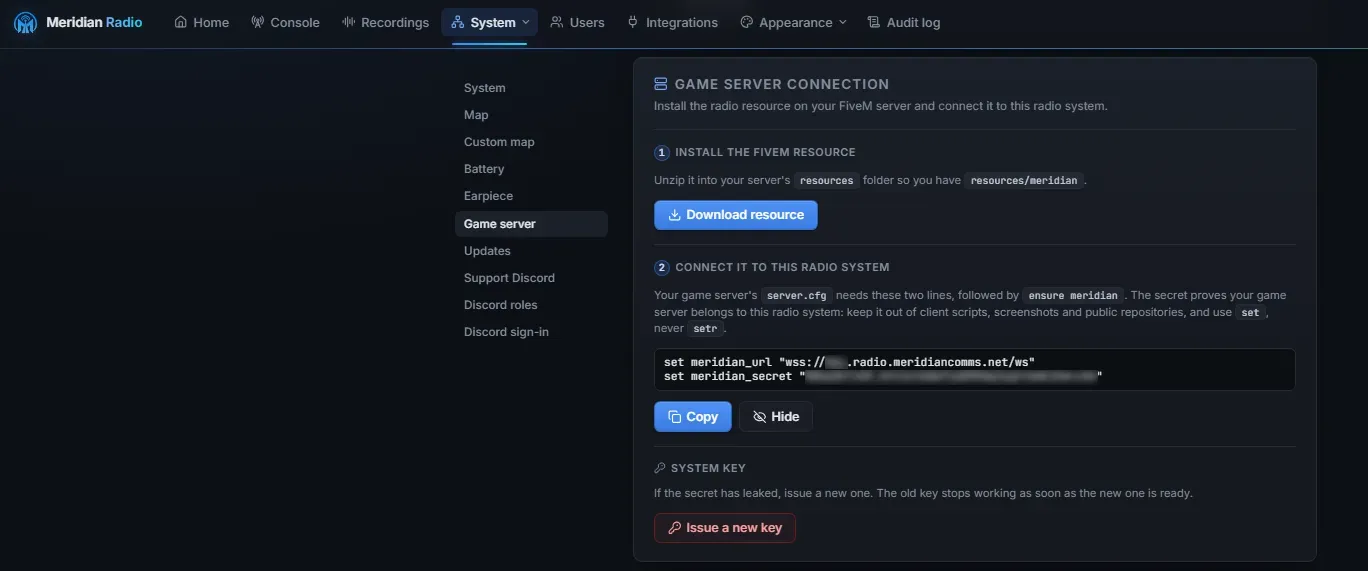
set meridian_secret "…"set meridian_url "wss://your-community.radio.meridiancomms.net/ws"ensure meridianRestart the server. The server console shows linked to the radio server once the resource is connected.
Using LB Phone? Also copy the meridian_phoneapp folder from the download and add ensure meridian_phoneapp after
ensure meridian. It adds your emergency app to players’ phones.
Everything else in server.cfg is optional. The server.cfg reference lists every setting.
4. Make your first call
Section titled “4. Make your first call”- Join your server. Press F7 to switch the radio on and F6 to show it.
- Hold Caps Lock to talk. A second player on the same channel hears you.
- In the web app, open Console (dispatchers and above) and press Enable audio: you hear the call there too.
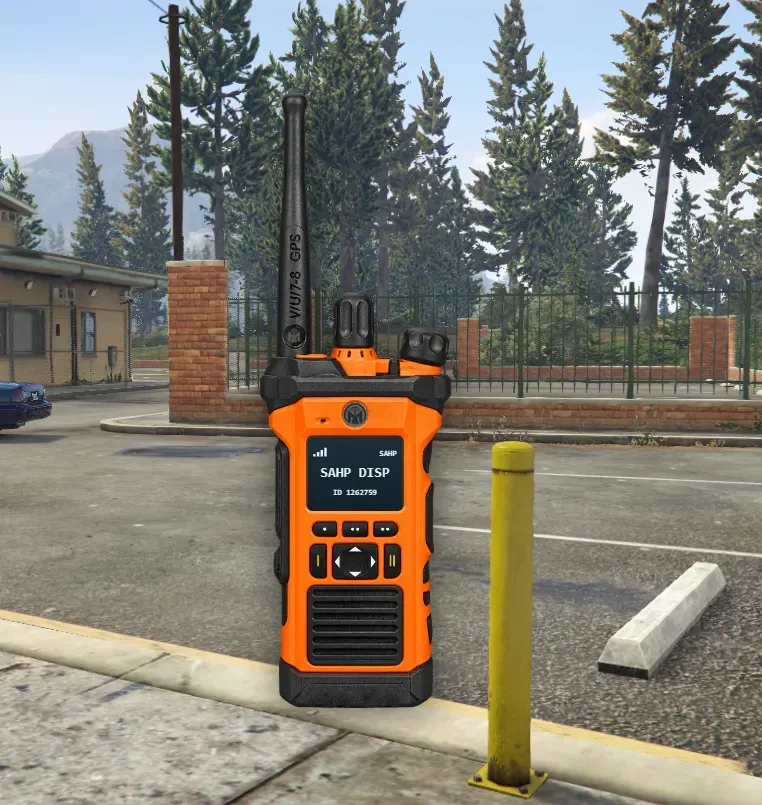
Every player starts with the default agency and its channels. Next, set up your own
agencies and channels, and if you use Qbox, QBCore, ESX or ox_core, map jobs to agencies
(Frameworks).
If something doesn’t work
Section titled “If something doesn’t work”| What you see | What to do |
|---|---|
Server console: meridian won’t start, mentioning /server:12913 |
Your server is older than build 12913. Update FXServer |
Server console: meridian_secret is not set |
The set meridian_secret line is missing, or comes after ensure meridian. The settings have to come first |
Server console: radio server refused the link |
Usually the secret doesn’t match. Copy both lines again from the web app. If you issued a new key, the old one stopped working |
Server console: can't reach the radio server at … |
Check meridian_url is exactly as shown in the web app, and that your host allows outgoing connections on port 443 |
| Players’ radios show NO SYSTEM | The radio can’t reach the radio system. Check the server console for the problems above, and that your plan is active |
| NO CHANNELS on the radio | The player has no agency with zones. Give them one, or keep the default agency |
| NO MIC when talking | The radio couldn’t open a microphone. Check that Windows allows apps to use the microphone (Privacy & security → Microphone), then pick the right one under Microphone in /radiosettings |
| Players hear each other on the radio but not nearby speakers | Radio speakers need OneSync and the game server link. See Radio speakers |
Still stuck? Ask in our Discord with what the server console says when the resource starts.
Checklist
Section titled “Checklist”- FXServer on build 12913 or newer, with OneSync on
- Owner account created
- Resource installed and
server.cfglines added - Console shows
linked to the radio server - Agencies, zones and talkgroups set up
- Towers placed, if you want coverage (otherwise radios work everywhere)
- Staff accounts added
- Players pointed at Using the radio