
Using the radio
This page is written for your players. Link them to it, or copy it into your own guide.
| Key | Action |
|---|---|
| F7 | Switch the radio on or off (also /radiopower) |
| F6 | Show the radio, then peek (just its top and screen at the bottom of the screen), then hide it |
| Caps Lock (hold) | Push-to-talk |
| Page Up / Page Down | Channel up / down |
| End | Next zone |
| Home (hold 1 s) | Emergency |
| unbound | Previous zone |
| unbound | Volume up / down |
| unbound | Speaker / earpiece |
| unbound | Voice announcements on / off |
| unbound | Set the radio’s name |
| unbound | Use the radio with the mouse |
| unbound | Radio settings |
| unbound | Dispatch tablet (dispatchers only) |
Rebind any of them in Settings → Key Bindings → FiveM; they’re all listed under “Radio:”. Radios start switched off when you join. On some servers the radio switches on by itself when you go on duty, or needs a radio item in your inventory.
Commands
Section titled “Commands”| Command | Does |
|---|---|
/radiosettings |
Open the settings screen |
/radiopower |
Switch the radio on or off |
/radiovol 80 |
Set the volume, 0–150 |
/radiospeaker |
Switch between speaker and earpiece |
/radiovoice on / off |
Turn voice announcements on or off (on its own, it switches) |
/radioname Medic 4 |
Name your radio. /radioname on its own opens a box; /radioname - goes back to the default |
/radiomodel auto |
handheld, mobile (the vehicle radio) or auto (handheld on foot, vehicle radio in a vehicle) |
/radioskin, /radiosounds |
List or pick the radio’s look and sounds |
/radiomouse |
Pick the radio up to click its buttons |
/radiodiag |
Show connection, signal and tower details, for reporting problems |
/dispatch |
Open the dispatch tablet (dispatchers only) |
Radio settings
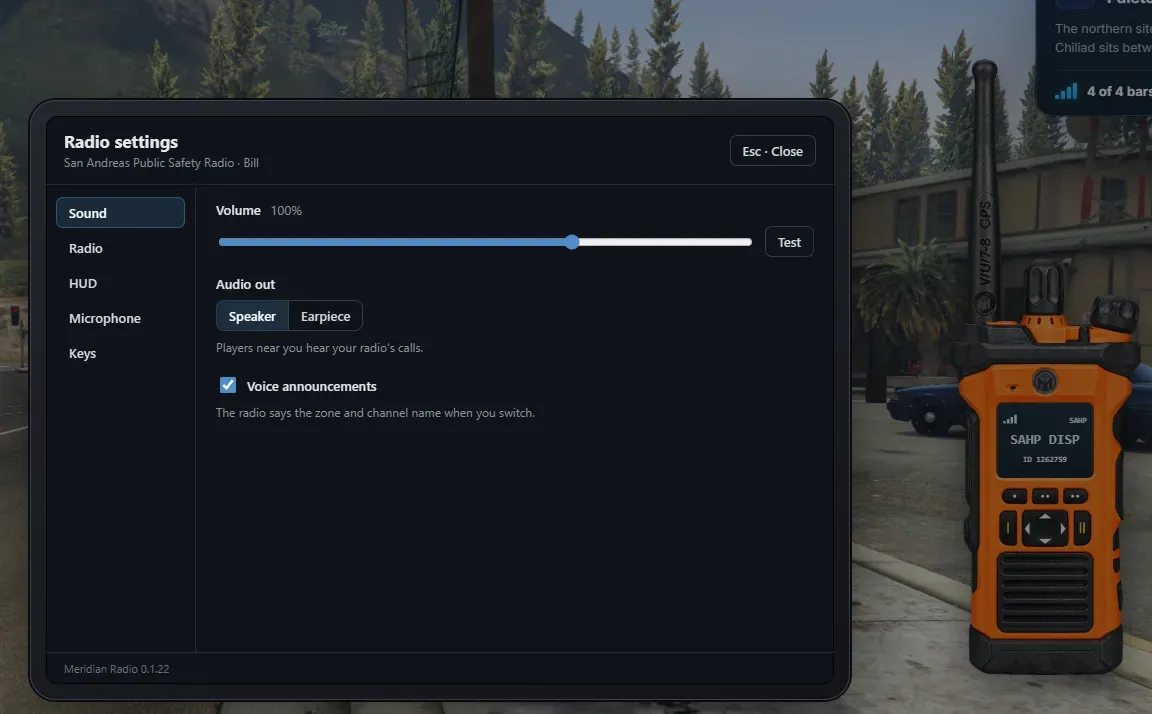
Section titled “Radio settings”Type /radiosettings (or bind a key to “Radio: settings”) to open the settings screen. Press Esc to close it.
Everything is remembered on this PC.
| Tab | What’s on it |
|---|---|
| Sound | Volume, speaker or earpiece, voice announcements, and the sound pack (when your server offers more than one) |
| Radio | The skin (when your server offers more than one), handheld or vehicle radio, show or hide it, move it or put it back in its corner, its name, and the battery level |
| HUD | The small box shown while the radio is hidden (see below) |
| Microphone | Which microphone the radio uses, and whether it’s working |
| Keys | Which keys do what |
Pressing F6 once with the radio up drops it to the bottom edge of the screen, so only its top and display show
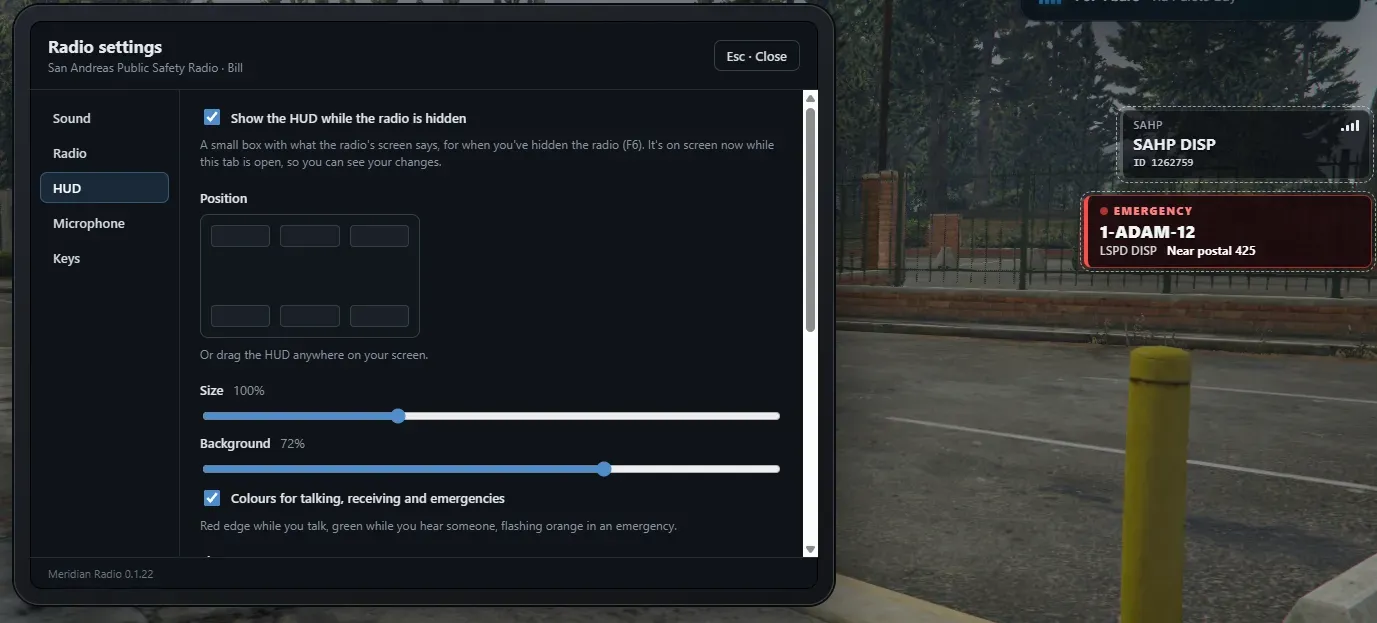
(“peek”); press it again to hide it, and again to bring it back. When you hide the radio while it’s on, a small box in the corner keeps showing the zone, channel, who’s talking,
your signal and battery. It turns green while you hear someone, red while you talk, and flashes orange during an
emergency. The HUD tab in /radiosettings turns it off or changes it: put it in any corner or the middle of the
top or bottom of the screen, or drag it anywhere while the tab is open. You can also make it bigger or smaller, make the background see-through, turn the colors off, and
pick what it shows (zone, channel, status line, TX/RX badge, signal, tower name, battery, earpiece). The same tab
picks where emergency alerts pop up: pick a corner, or drag the example alert anywhere.
Talking
Section titled “Talking”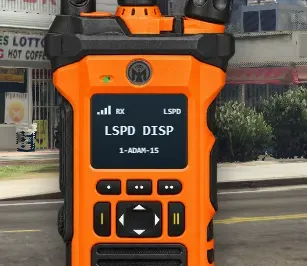
Hold push-to-talk and wait for the talk-permit tone before speaking. Only one person talks at a time on each channel: if someone else already is, you hear a reject tone, the radio shows BUSY, and you have to try again when they finish. Emergency calls take over the channel. Players standing near you also hear your side of the call.
Your radio’s microphone picks up what’s around you: sirens, your engine and road noise, helicopters and gunfire are heard behind your voice.
Speaker and earpiece
Section titled “Speaker and earpiece”Radios play calls on their speaker, so players standing near you hear them too, quieter the further away they are.
Switch to an earpiece with /radiospeaker (or bind a key to “Radio: speaker/earpiece”) when you don’t want them
overheard; the display shows EAR. Turning the volume all the way down also stops others hearing it.
Some communities count certain clothing as an earpiece. While you wear it, your radio switches to the earpiece on its own. You can still switch to the speaker for a while, unless your community doesn’t allow it. When you take it off, the radio goes back to whichever you picked last.
Your community may also have speakers placed around the map, for example in fire stations. You hear tones and dispatchers on them when you’re nearby, with or without a radio.
Your radio’s name
Section titled “Your radio’s name”Dispatch and other radios see your radio’s name when you talk. /radioname Medic 4 changes it, /radioname on its
own opens a box to type it in, and /radioname - goes back to the default. Some servers don’t allow custom names.
On servers where the radio is an inventory item, the name and channels belong to the radio itself: pick up someone else’s radio and it’s still theirs, name and all, until you rename it or an admin reprograms it.
Radio skin and sounds
Section titled “Radio skin and sounds”Your server may offer more than one look or set of sounds for the radio. /radioskin lists the skins and
/radiosounds lists the sound packs; pick one with its number or name, like /radioskin 2 or /radiosounds classic.
/radioskin default goes back to the server’s default. Your choice is remembered on this PC.
Using the radio with the mouse
Section titled “Using the radio with the mouse”Type /radiomouse (or bind a key to “Radio: use with the mouse”) to pick the radio up and click its buttons:
push-to-talk, emergency, power, the channel and volume knobs, and the soft keys. Hold the push-to-talk button while
you speak, and hold emergency for a second, just like the keys. You can’t walk while the mouse is on the radio; press
Esc, right-click, or click anywhere off the radio to put it down. Custom radios from your server may have their
buttons in different places.
While the mouse is on the radio you can also move it: drag it by any part that isn’t a button and drop it anywhere on screen. The handheld and the vehicle radio each remember their own spot, even after you restart the game. Reset position (next to the hint) puts the radio back in the corner.
Channels and zones
Section titled “Channels and zones”Channels (talkgroups) are grouped into zones. Which zones you get depends on your agency, set by your server’s staff. Channel up/down moves within the zone; the zone key moves to the next zone.
When you change channel the radio says its name, and when you change zone it says the zone first. Scroll through
several channels quickly and it only says the one you stop on. Turn this off with /radiovoice off (or bind a key
to “Radio: voice announcements on/off”), and back on with /radiovoice on. Your choice is remembered on this PC.
Your server may turn announcements off for everyone.
Emergencies
Section titled “Emergencies”Hold the emergency key for a second. Everyone on the channel sees your emergency, and your calls take over the channel even if someone else is talking. When a dispatcher acknowledges it, your radio shows EMERG ACK. Hold the key for a second again to clear it.
Your community may also tell everyone on the channel who’s in trouble and the postal they’re nearest, as an alert on
screen or spoken by the radio, usually when no dispatcher is on. Choose where on-screen alerts appear in the HUD
tab of /radiosettings.
Priority traffic
Section titled “Priority traffic”During a pursuit or major incident, dispatch can put a channel on priority traffic. Your radio shows PRIORITY and beeps once every few seconds while the channel is quiet. Keep the channel clear for the units involved. You can still talk if you need to.
Patched channels
Section titled “Patched channels”Dispatch can patch channels together so units on different channels can talk to each other. Your radio shows PATCHED, and you’ll hear units on the other channels as if they were on yours. Only one person can talk at a time across all of them, so expect BUSY more often.
Signal
Section titled “Signal”If your server has placed radio towers, the bars show your signal. Buildings, hills and distance reduce it. At one or
two bars, what you hear breaks up; with no bars the radio shows OUT OF RANGE and can’t talk or hear. Vehicle
radios reach further than handhelds. /radiodiag shows which tower you’re using.
Battery
Section titled “Battery”If your server uses radio batteries, a battery icon shows at the bottom right of the handheld’s screen. The radio drains while it’s switched on, faster while you talk, so switch it off when you don’t need it. At 20% it chirps and shows LOW BATTERY. At 5% the screen dims and it can’t transmit. When it’s empty it switches off and won’t come back on until charged.
Depending on your server, you charge it by sitting in a vehicle, standing at a charging spot, or using a spare battery from your inventory. The screen shows CHARGING and the level while it charges. The vehicle radio runs off the car, so it never needs charging.
What the screen means
Section titled “What the screen means”| Screen | Meaning |
|---|---|
| BUSY | Someone else is talking on the channel. Wait for them to finish |
| OUT OF RANGE | No signal. Move toward a tower, get outside, or get in a vehicle |
| NO SYSTEM | The radio isn’t connected. It reconnects by itself; if it doesn’t, tell your server’s staff |
| NO CHANNELS | You have no channels. You may need to go on duty, join a department, or carry a radio item |
| NO MIC | The radio couldn’t open your microphone. Pick one under Microphone in /radiosettings |
| NO AFFIL | The radio system wouldn’t let you join that channel |
| EMERGENCY / EMERG name | Your emergency, or another unit’s, was raised |
| EMERG ACK | Dispatch acknowledged your emergency |
| PRIORITY / PRI CLEAR | Priority traffic started or ended on your channel |
| PATCHED / UNPATCHED | Dispatch patched your channel to others, or ended the patch |
| SPEAKER / EARPIECE / EAR | Where calls play. EAR stays on screen while you’re on the earpiece |
| EARPIECE IN | You’re wearing an earpiece and your server doesn’t allow the speaker with it |
| LOW BATTERY / CHARGING / BATTERY FULL / BATTERY DEAD | Battery warnings, when your server uses batteries |
| ENABLED | An admin had disabled your radio and has turned it back on |
If your radio goes silent and won’t talk, without any of these, an admin may have disabled it. Ask your server’s staff.
Reporting a problem
Section titled “Reporting a problem”Type /radiodiag and send your server’s staff what it shows, along with what you were doing. It includes the
connection state, your signal and tower, and your unit ID.