
The System page
Almost everything about how your radio system behaves is set under System in the web app. Admins and owners can change it; viewers and dispatchers can look. Every save is a revision you can undo from History, and changes reach connected radios straight away.

| Tab | What it’s for | Guide |
|---|---|---|
| Talkgroups | The channels people talk on | Agencies and channels |
| Zones | Ordered lists of talkgroups, like zones on a real radio | Agencies and channels |
| Agencies | Which zones each department gets, and their Discord roles | Agencies and channels, Discord roles |
| Sites | Radio towers and where radios have signal | Towers and coverage |
| Speakers | Speakers placed in the game world | World speakers |
| Phone | Numbers players can call and text dispatch on | Phone calls and texts |
| Settings | The cards below | |
| History | Every revision, with who changed what; restore, export and import | History and restoring |
Settings cards
Section titled “Settings cards”The Settings tab is one column of cards. On a wide screen the list on the left jumps to each one. When you change something, a bar appears at the bottom of the page listing the cards with unsaved changes. Save changes (or Ctrl+S) saves them all and Discard puts them back. Leaving the page with unsaved changes asks first. The same bar appears on every page with settings, such as Talkgroups, Phone, Speakers and the Appearance editor.
System
Section titled “System”| Setting | What it does |
|---|---|
| System name | Shown on the System page, in players’ /radiosettings, and to scripts through the player API |
| WACN and System ID | P25-style identifiers (up to 5 and 3 hex digits). They’re for realism and don’t change how radios behave |
| Hang time | How long radios keep showing the last talker after a call ends (milliseconds) |
| Max call length | Transmissions longer than this are cut off, so a stuck key doesn’t block a channel (5–600 seconds) |
| Priority beep every | How often radios beep during priority traffic (5–60 seconds) |
| Emergency notifications | Tell radios on the channel who pressed their emergency button and the postal they’re nearest: off, on screen or spoken, and only while no dispatch console is open or always. See Emergency notifications |
| Voice announcements and Voice | Radios say channel and zone names aloud, and in which voice. Voice announcements |
| Call recording | Record every call, and how long to keep recordings. Call recording |
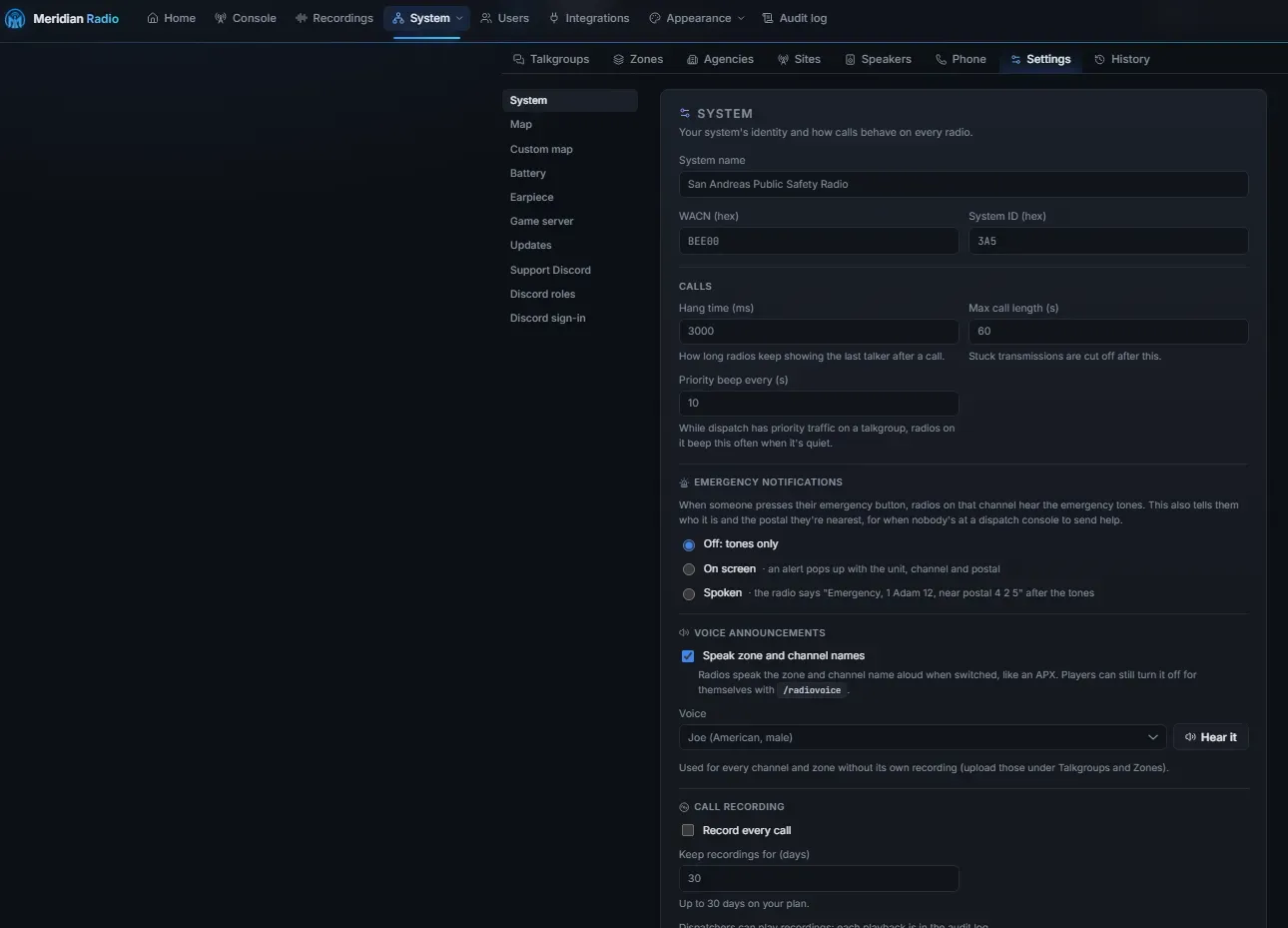
Emergency notifications
Section titled “Emergency notifications”When a unit presses their emergency button, every radio with that channel hears the emergency tones and shows EMERG and the unit’s name. With nobody at a dispatch console, nobody may know where to send help. Emergency notifications tell the radios on that channel (including channels patched to it) who it is and where:
- On screen: an alert pops up for 15 seconds with the unit’s name, the channel and “Near postal 425”. Players
choose where it appears in the HUD tab of
/radiosettings(top right by default). - Spoken: after the tones, the radio says “Emergency, 1 Adam 12, near postal 4 2 5” in your announcement voice, even if channel announcements are off. If the clip can’t be fetched, the player’s PC voice says it instead.
- When: Only while no dispatch console is open (an in-game dispatch tablet counts as a console), or Always.
The unit pressing the button isn’t notified, and pressing it again on the same channel doesn’t notify again. The postal needs postal codes and the game server linked; without them, the notification leaves the postal out.
Controls the dispatch live map and what every map in the web app (the live map and the tower map under Sites) can show.
| Setting | What it does |
|---|---|
| Live map on dispatch consoles | Dispatchers see every connected radio on a map of the city (off by default) |
| Postal codes | Where postal codes come from: From the game server, an Uploaded file, or Off |
| Rescan game server | Has the game server read its postal resource again |
| Upload postal file | A postal list to use instead of the game server’s |
Every map gets sharper as you zoom in and labels streets by name; there’s nothing to set up for either. Anyone can hide street names or postal codes from the layers button on a map.
Postal codes
Section titled “Postal codes”Postals show on the maps as you zoom in, next to radios on the console (“near postal 425”), and in the Go to postal search. They differ between servers, so they come from yours:
- From the game server (the default): the radio resource reads the postal file your postal resource already
uses, such as nearest-postal,
and sends it whenever either resource starts. It looks for a started resource with a
postal_fileline in itsfxmanifest.lua, then for a resource with “postal” in its name that has apostals.json(like SnailyCAD’s sna-postals),new-postals.json,ocrp-postals.jsonorold-postals.json. A resource with areadPostalCodesexport, like Meridian Postals and sna-postals, is asked for its list first. If yours keeps the list elsewhere, setmeridian_postalsto"resource/file.json". If you’ve edited the postal file or added a postal resource since, press Rescan game server to read it again without restarting anything. To pick one, or turn this off, setmeridian_postalsinserver.cfg. - Uploaded file: upload the same
.jsonfile postal resources use, a list like[{ "code": "101", "x": -1234.5, "y": 567.8 }, ...](up to 10,000 codes). Use this if you don’t run a postal resource, or want the maps to differ from it.
The card shows how many codes each source has. Uploading a file doesn’t switch to it: choose Uploaded file and save.
Meridian Postals
Section titled “Meridian Postals”No postal resource on your server? Download Meridian Postals from the Map card (under From the game
server). It’s a small server-only resource that holds your postal codes for Meridian and for other scripts: it has
the same readPostalCodes export as SnailyCAD’s sna-postals, so CADs that read that work with it too. It doesn’t
draw anything in game.
- Put the
meridian_postalsfolder in your server’s resources folder. - Add
ensure meridian_postalstoserver.cfg, beforeensure meridian. - Restart the server. The console says how many postal codes it loaded, and the Map card shows them under From the game server.
It comes with the standard postal map. To use your own, either:
- put your file in the
meridian_postalsfolder ascustom-postals.json, or - point
server.cfgat it:set meridian_postals_file "maps/my-postals.json"(a path inside the folder, or a full path on the server).
The file is the usual list of { "code", "x", "y" }. If yours can’t be read, the console says why and the standard
map is used instead. After changing the file, restart meridian_postals: the radio picks up the new list by itself.
Custom map
Section titled “Custom map”Every map offers Atlas, Satellite and Road. If your server has its own map (with custom MLOs, street names or redrawn areas), upload it as a PNG, JPEG or WebP up to 10 MB, and it appears in every map’s layers menu under the name you give it.
The four edges say where the image sits in the game world. Most full-city renders cover the same area as the built-in maps, so Match the built-in map is usually right. The preview lays your image over the built-in map; fade it with the slider and adjust the edges until roads line up.
Other cards
Section titled “Other cards”| Card | Who | Guide |
|---|---|---|
| Radio batteries | Admins | Radio batteries |
| Earpiece clothing | Admins | Earpiece clothing |
| Game server connection | Owner | Set up your community, System key |
| Updates | Owner | Pre-release updates |
| Discord roles | Owner edits, admins see | Discord roles |
| Discord sign-in | Owner edits, admins see | Signing in with Discord |
Settings that live elsewhere
Section titled “Settings that live elsewhere”- How the game server behaves (who gets a radio, items, the tablet, speakers, background noise) is set in
server.cfg. See the server.cfg reference. - Looks and sounds (console themes, radio skins, sound packs, alert tones) are under Appearance. See Appearance and the Workshop.
- Staff accounts are under Users, and API keys and webhooks under Integrations.